> ## Documentation Index
> Fetch the complete documentation index at: https://docs.runtm.com/llms.txt
> Use this file to discover all available pages before exploring further.
# Payment support agent
> Build an agent that takes a Slack question or a forwarded Zendesk ticket about a charge, decline or refund, reconstructs the payment timeline from Stripe and a read-only ledger, and drafts a cited customer reply behind an approval gate. Uses Zendesk, a custom Stripe provider and Postgres. Read when building any ticket-driven investigation agent.
## What you will have
A roster agent called Payment Support that answers charge, decline and refund questions with a draft reply and an evidence section, graded pass or fail on every run, reachable from a Slack channel and an email inbox. It reads Stripe and the ledger through least-privilege credentials, never sends anything to a customer, and waits for a person before posting a draft back to Zendesk.
## The agent spec
| Part | Value for this agent |
| ---------- | ----------------------------------------------------------------------------------------------------------------------------------------------------------------------------------------------------------------------------------------------- |
| Job | Given a ticket or a Slack question about one charge, decline or refund, identify the customer from the case, reconstruct the payment timeline, draft a customer-ready reply with cited evidence. Never send. |
| Success | Three categories: `decline-explanation`, `duplicate-charge`, `refund-status`. Pass means the draft cites the Stripe objects and ledger rows and proposes one next step. About \$18 and 25 minutes of human time per case. \$400 monthly budget. |
| Tools | Template `Payment Support` with Zendesk (agent-scoped, bot token), Stripe (org-wide, restricted read-only key), Postgres (org-wide, read-only role). |
| How | Skill `payment-investigation` with a decline-code reference file. System instructions that state input, output and the never list. |
| Triggers | Slack mention in `#support-agent-test`, then an email inbox. Zendesk itself cannot trigger the agent. |
| Guardrails | Added last: allow Stripe reads, deny Stripe writes, default policy `ask`, an approval gate before posting to Zendesk. |
## 1. Define the job
Follow [Define the job](/build/define-the-job) with these values.
Open **Agents**, click **New Agent**, name it `Payment Support`, pick an avatar, and on the **Instructions** step enter the description and system instructions below.
**Description**: "Given a Zendesk ticket or a Slack question about a charge, decline or refund, reconstructs the payment timeline from Stripe and the ledger and drafts a customer reply with cited evidence. Never sends."
**System instructions**:
```markdown theme={null}
You are the payment support investigator for Northstar Payments.
Input: a Zendesk ticket URL or id, or a Slack question naming one customer and one payment.
Output: a draft reply in the customer's language, then an evidence section listing every
Stripe object id and ledger row you relied on, then one recommended next step.
Method: follow the payment-investigation skill exactly.
Never:
- Send, post or close anything in Zendesk on your own. Drafts only, behind an approval.
- Create refunds or touch any Stripe object that is not a read.
- Look up any customer other than the one the ticket names.
- Paste full card numbers or bank account numbers. Last four digits only.
If you cannot identify the customer or the payment, say so, list what you tried, and stop.
```
Skip **Triggers** for now and click **Create agent**.
The template is built in step 3. Come back to **Default template** once it exists.
## 2. Measure success
Follow [Measure success](/build/measure-success). Open the agent's card, scroll to **Performance evaluation**, and click **Add evaluation category** three times.
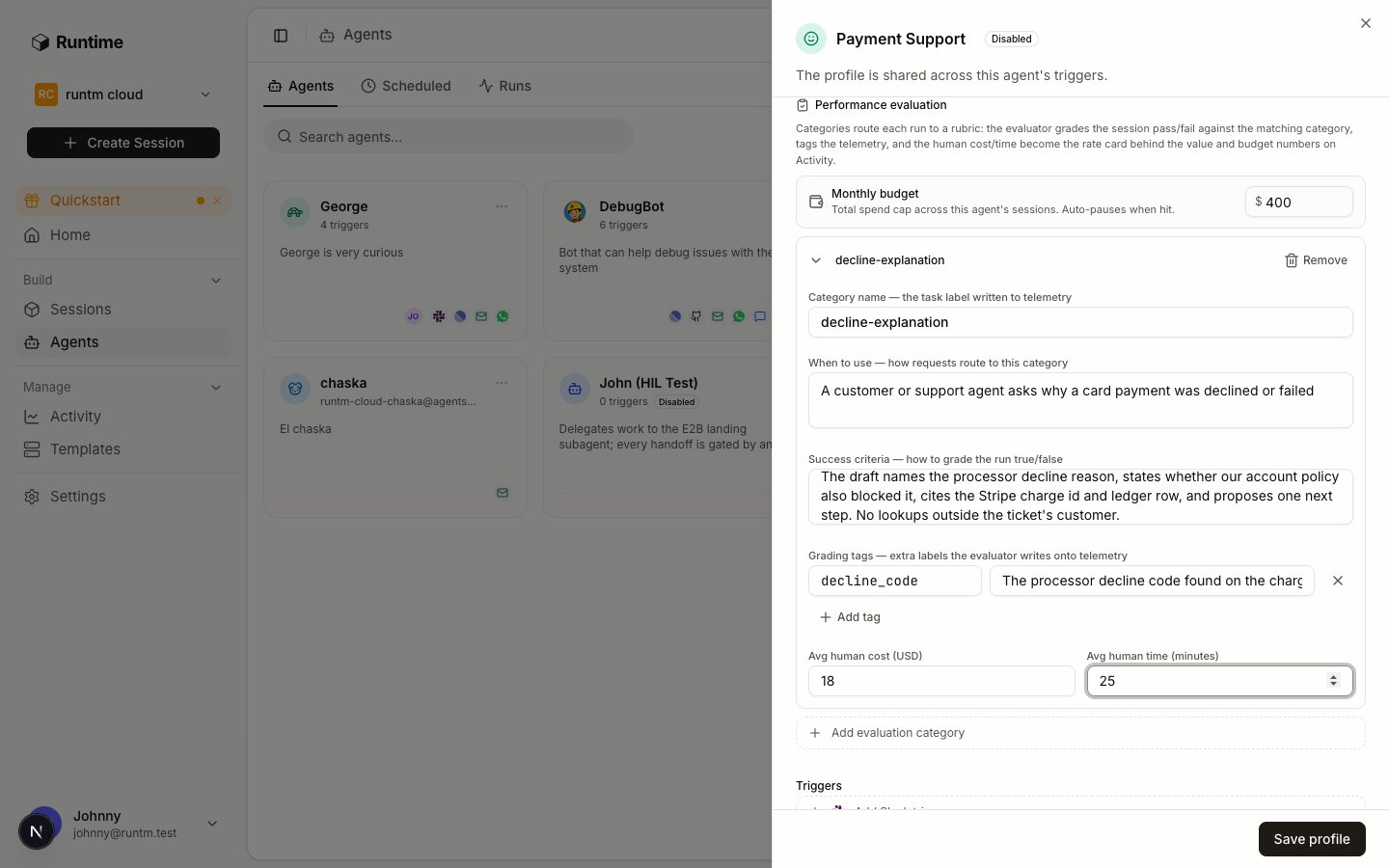 **When to use**: "A customer or support agent asks why a card payment was declined or failed."
**Success criteria**: "The draft names the processor decline reason from the Stripe charge outcome, states whether Northstar's own account policy also blocked the payment, cites the Stripe charge id and the matching ledger row, and proposes exactly one next step for the customer. No lookups outside the ticket's customer."
**Grading tags**: `decline_code`, "the processor decline code found on the charge, for example insufficient\_funds or do\_not\_honor".
**Avg human cost (USD)** 18, **Avg human time (minutes)** 25.
**When to use**: "The customer reports being charged twice for one order or sees two pending amounts."
**Success criteria**: "The draft lists both charge ids, states which one captured and which one is a pending authorization that will drop, cites the ledger rows for the captured charge, and gives the date the authorization expires. It does not promise a refund."
**Avg human cost (USD)** 18, **Avg human time (minutes)** 25.
**When to use**: "The customer asks where a refund is or when it will arrive."
**Success criteria**: "The draft cites the refund id and its status from Stripe, the date it was created, the ledger row that recorded it, and the expected arrival window for the card network. If no refund object exists, the draft says so and recommends escalation instead of inventing one."
**Avg human cost (USD)** 12, **Avg human time (minutes)** 15.
Enter `400` under **Monthly budget**. This is a flag on the scorecard and an audit event, not a stop. Click **Save profile**.
## 3. Give it tools
Follow [Give it tools](/build/give-it-tools). Three systems, each with the least access that still answers a ticket.
**When to use**: "A customer or support agent asks why a card payment was declined or failed."
**Success criteria**: "The draft names the processor decline reason from the Stripe charge outcome, states whether Northstar's own account policy also blocked the payment, cites the Stripe charge id and the matching ledger row, and proposes exactly one next step for the customer. No lookups outside the ticket's customer."
**Grading tags**: `decline_code`, "the processor decline code found on the charge, for example insufficient\_funds or do\_not\_honor".
**Avg human cost (USD)** 18, **Avg human time (minutes)** 25.
**When to use**: "The customer reports being charged twice for one order or sees two pending amounts."
**Success criteria**: "The draft lists both charge ids, states which one captured and which one is a pending authorization that will drop, cites the ledger rows for the captured charge, and gives the date the authorization expires. It does not promise a refund."
**Avg human cost (USD)** 18, **Avg human time (minutes)** 25.
**When to use**: "The customer asks where a refund is or when it will arrive."
**Success criteria**: "The draft cites the refund id and its status from Stripe, the date it was created, the ledger row that recorded it, and the expected arrival window for the card network. If no refund object exists, the draft says so and recommends escalation instead of inventing one."
**Avg human cost (USD)** 12, **Avg human time (minutes)** 15.
Enter `400` under **Monthly budget**. This is a flag on the scorecard and an audit event, not a stop. Click **Save profile**.
## 3. Give it tools
Follow [Give it tools](/build/give-it-tools). Three systems, each with the least access that still answers a ticket.
 Open **Templates**, click **New Template**, choose **Blank environment**, name it `Payment Support`, and click **Create Template**. No repository is needed; the runbook lives in a skill.
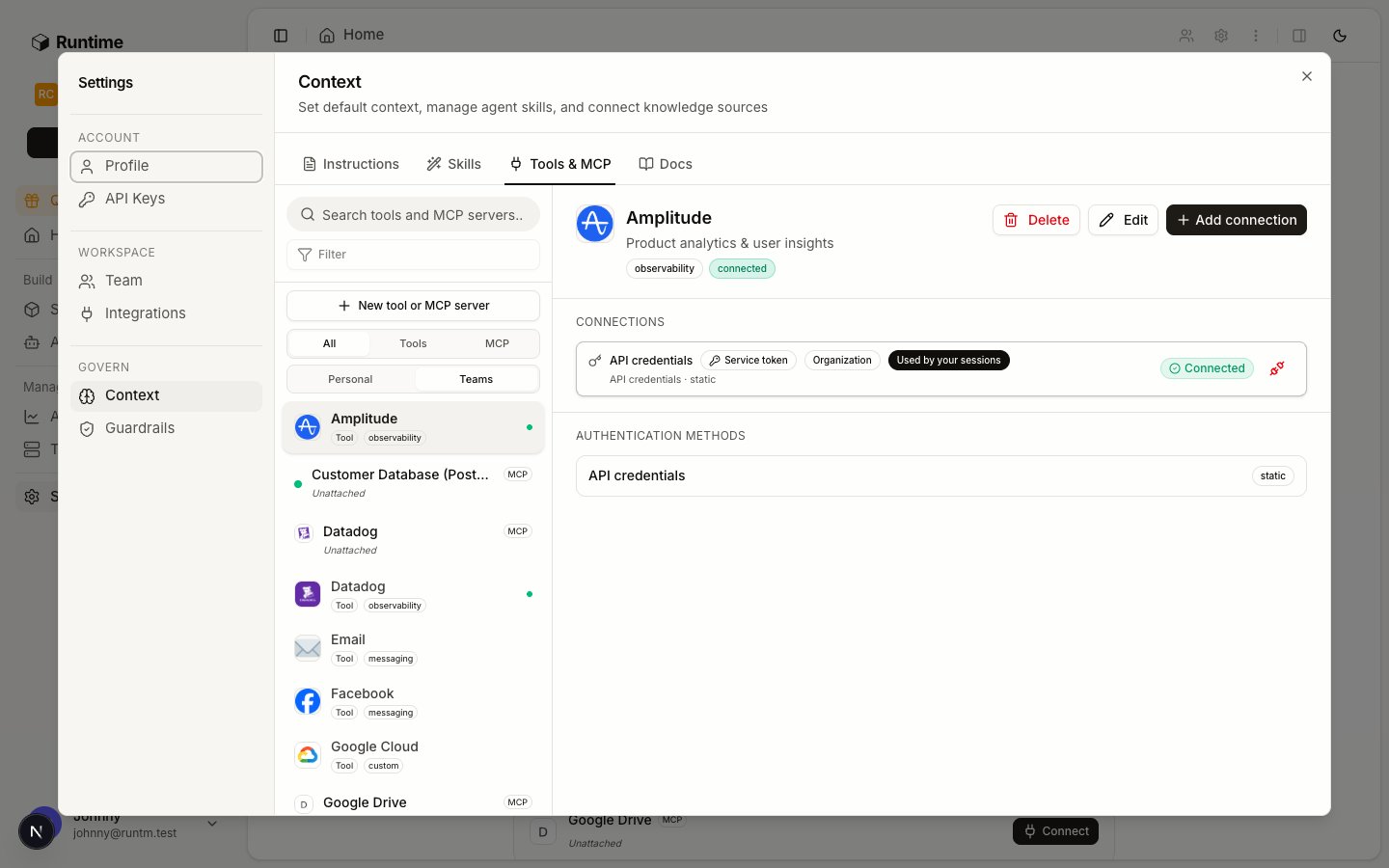
In **Settings > Context > Tools & MCP**, click **New tool or MCP server**, choose **Tool**, pick **Zendesk** from the catalog, and enter the subdomain, the email of the `support-bot` Zendesk agent and its API token. Choose the agent scope and select Payment Support.
Zendesk is agent-scoped on purpose: every draft the agent posts should be attributed to the bot user, not to whoever mentioned it in Slack. An agent-scoped connection also reaches the agent's sessions without a skill requiring it. See [the credential hierarchy](/build/give-it-tools#who-the-agent-acts-as-the-credential-hierarchy).
Stripe is not in the built-in catalog. Create a custom provider with one static auth method that materializes `STRIPE_SECRET_KEY`, then connect it org-wide.
In Stripe, create a **restricted key** with read permission on Charges, Payment Intents, Refunds, Disputes and Customers, and nothing else. Nothing in Runtime downgrades a credential, so the key itself is the first control.
Create a second custom provider that materializes `POSTGRES_CONNECTION_STRING`. In the database, create a `support_readonly` role that can `SELECT` from the `payments.charges`, `payments.refunds` and `payments.ledger_entries` views and nothing in other schemas. Connect it org-wide.
Open the agent, set **Default template** to `Payment Support` and **Coding agent** to Claude Code, and click **Save profile**.
The Stripe and Postgres connections are org-wide, so they reach the template only once a skill requires them. That is the next step.
## 4. Define how it works
Follow [Define how it works](/build/how-it-works/overview): skill first, then instructions, then a test trigger.
Create a directory with `SKILL.md` and `references/decline-codes.md`.
```markdown theme={null}
---
name: payment-investigation
description: Reconstruct a charge, decline or refund for one customer from Stripe and the ledger, then draft a cited reply. Use for any ticket or question about a specific payment.
---
# Payment investigation
1. Identify the customer from the ticket or the Slack message. Use the Stripe
customer id or the order id it contains. Never search Stripe by free text.
2. Read the Stripe objects for that customer only: the charge or payment intent,
its outcome, any refunds and disputes. Read only.
3. Read the matching rows from the ledger with psql. The read-only role sees the
payments schema views only.
4. Separate what the processor said from what Northstar did. Look up the decline
code in references/decline-codes.md for the customer-facing wording.
5. Write the draft: two short paragraphs in the customer's language, no internal
ids in the body. Then an Evidence section with every Stripe id and ledger row.
Then one Recommended next step.
6. Request an approval before posting the draft to the ticket:
runtm-approval request --kind customer_reply --message "Draft for ready" --required-role admin --wait
Post only if the exit code is 0. Report the note if rejected.
```
`references/decline-codes.md` starts like this:
| Decline code | Processor meaning | Say to the customer |
| ------------------------ | ----------------------------------- | -------------------------------------------------------------- |
| `insufficient_funds` | Issuer reported insufficient funds | Ask them to check the balance or use another card |
| `do_not_honor` | Issuer declined without a reason | Ask them to contact their bank; nothing on our side blocked it |
| `card_velocity_exceeded` | Too many attempts in a window | Wait and retry; explain the window if the issuer gives one |
| `expired_card` | Card past its expiry date | Ask for an updated card |
| `incorrect_cvc` | CVC did not match | Ask them to re-enter the security code |
| `fraudulent` | Issuer flagged the payment as fraud | Do not retry; escalate to the risk team |
Create the skill, upload the reference file, require the three providers, and attach it to the template.
On the template's **Build** tab click **Build**. Wait for `ready`. The skill, the Stripe and Postgres connections it requires, and the agent-scoped Zendesk connection are now what every session gets.
Open the agent, and under **Triggers** click **Add Slack trigger**. Install the app into the workspace, then invite it to `#support-agent-test` only. Leave the channel-message toggles off so it runs only when mentioned or DMed.
Open **Templates**, click **New Template**, choose **Blank environment**, name it `Payment Support`, and click **Create Template**. No repository is needed; the runbook lives in a skill.
In **Settings > Context > Tools & MCP**, click **New tool or MCP server**, choose **Tool**, pick **Zendesk** from the catalog, and enter the subdomain, the email of the `support-bot` Zendesk agent and its API token. Choose the agent scope and select Payment Support.
Zendesk is agent-scoped on purpose: every draft the agent posts should be attributed to the bot user, not to whoever mentioned it in Slack. An agent-scoped connection also reaches the agent's sessions without a skill requiring it. See [the credential hierarchy](/build/give-it-tools#who-the-agent-acts-as-the-credential-hierarchy).
Stripe is not in the built-in catalog. Create a custom provider with one static auth method that materializes `STRIPE_SECRET_KEY`, then connect it org-wide.
In Stripe, create a **restricted key** with read permission on Charges, Payment Intents, Refunds, Disputes and Customers, and nothing else. Nothing in Runtime downgrades a credential, so the key itself is the first control.
Create a second custom provider that materializes `POSTGRES_CONNECTION_STRING`. In the database, create a `support_readonly` role that can `SELECT` from the `payments.charges`, `payments.refunds` and `payments.ledger_entries` views and nothing in other schemas. Connect it org-wide.
Open the agent, set **Default template** to `Payment Support` and **Coding agent** to Claude Code, and click **Save profile**.
The Stripe and Postgres connections are org-wide, so they reach the template only once a skill requires them. That is the next step.
## 4. Define how it works
Follow [Define how it works](/build/how-it-works/overview): skill first, then instructions, then a test trigger.
Create a directory with `SKILL.md` and `references/decline-codes.md`.
```markdown theme={null}
---
name: payment-investigation
description: Reconstruct a charge, decline or refund for one customer from Stripe and the ledger, then draft a cited reply. Use for any ticket or question about a specific payment.
---
# Payment investigation
1. Identify the customer from the ticket or the Slack message. Use the Stripe
customer id or the order id it contains. Never search Stripe by free text.
2. Read the Stripe objects for that customer only: the charge or payment intent,
its outcome, any refunds and disputes. Read only.
3. Read the matching rows from the ledger with psql. The read-only role sees the
payments schema views only.
4. Separate what the processor said from what Northstar did. Look up the decline
code in references/decline-codes.md for the customer-facing wording.
5. Write the draft: two short paragraphs in the customer's language, no internal
ids in the body. Then an Evidence section with every Stripe id and ledger row.
Then one Recommended next step.
6. Request an approval before posting the draft to the ticket:
runtm-approval request --kind customer_reply --message "Draft for ready" --required-role admin --wait
Post only if the exit code is 0. Report the note if rejected.
```
`references/decline-codes.md` starts like this:
| Decline code | Processor meaning | Say to the customer |
| ------------------------ | ----------------------------------- | -------------------------------------------------------------- |
| `insufficient_funds` | Issuer reported insufficient funds | Ask them to check the balance or use another card |
| `do_not_honor` | Issuer declined without a reason | Ask them to contact their bank; nothing on our side blocked it |
| `card_velocity_exceeded` | Too many attempts in a window | Wait and retry; explain the window if the issuer gives one |
| `expired_card` | Card past its expiry date | Ask for an updated card |
| `incorrect_cvc` | CVC did not match | Ask them to re-enter the security code |
| `fraudulent` | Issuer flagged the payment as fraud | Do not retry; escalate to the risk team |
Create the skill, upload the reference file, require the three providers, and attach it to the template.
On the template's **Build** tab click **Build**. Wait for `ready`. The skill, the Stripe and Postgres connections it requires, and the agent-scoped Zendesk connection are now what every session gets.
Open the agent, and under **Triggers** click **Add Slack trigger**. Install the app into the workspace, then invite it to `#support-agent-test` only. Leave the channel-message toggles off so it runs only when mentioned or DMed.
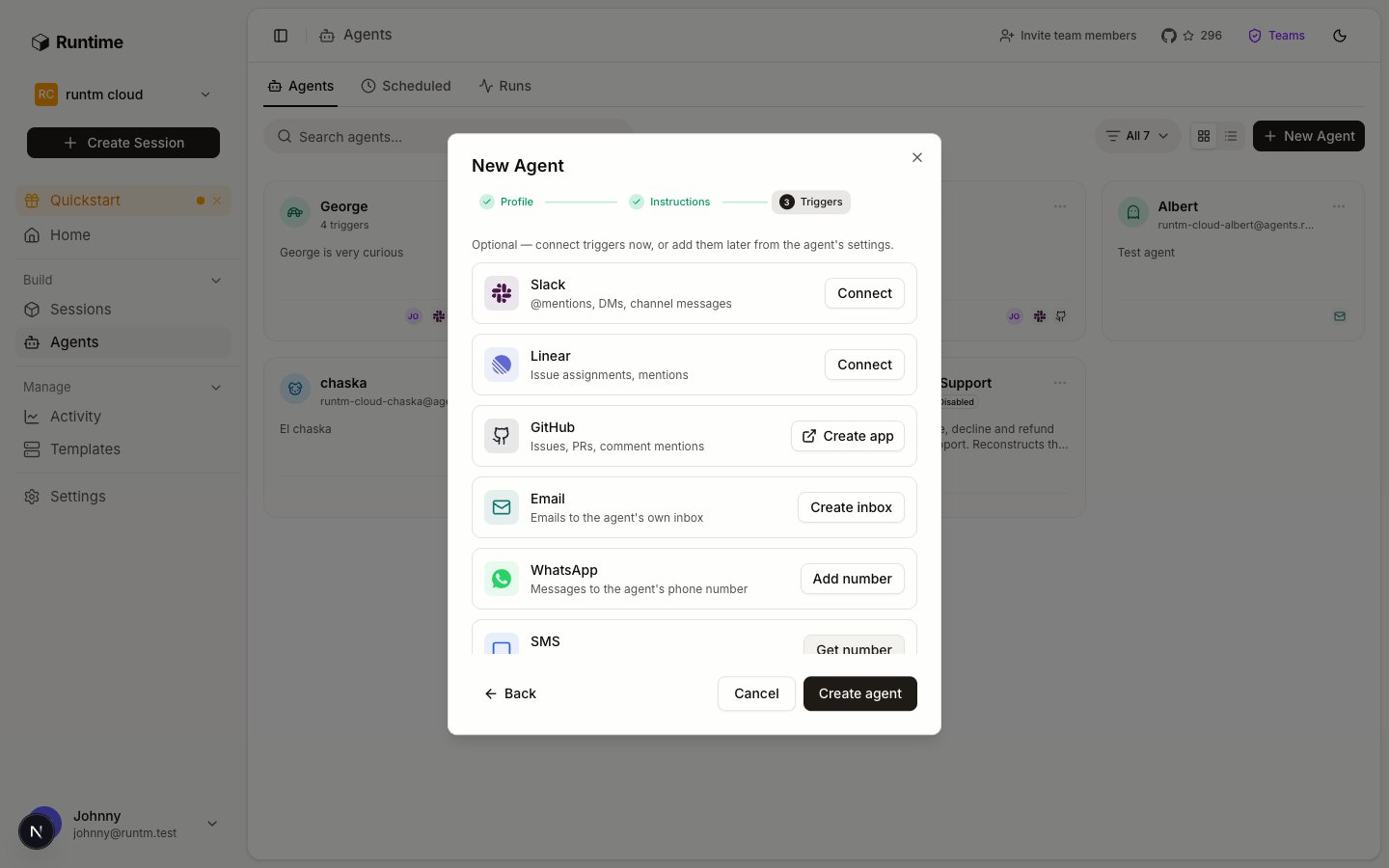 Zendesk has no inbound trigger in Runtime. Tickets reach the agent when someone mentions it with the ticket URL, when a ticket is forwarded to its inbox, or later through a scheduled sweep of the queue.
## 5. Prove it works
Follow [Prove it works and iterate](/build/launch-and-iterate). No guardrail exists yet, and that is intended: the Stripe key cannot write, the ledger role cannot write, the Zendesk token belongs to a bot user in a test channel, and the sandbox is destroyed after each run.
| Case | Input in the test channel | Expected grade | Why |
| ---- | ----------------------------------------------------------------------------------------------- | -------------------------- | ---------------------------------------------------------------- |
| 1 | `@Payment Support ticket 88231, customer cus_9xK2, card declined on order 48213` | `decline-explanation` pass | Charge outcome is `insufficient_funds`; policy did not block it |
| 2 | `@Payment Support ticket 88240, cus_4mQ7 declined twice yesterday` | `decline-explanation` pass | Outcome `card_velocity_exceeded`; two attempts inside the window |
| 3 | `@Payment Support ticket 88252, cus_7hL1 says their card works elsewhere` | `decline-explanation` pass | Outcome `do_not_honor`; draft must not blame Northstar |
| 4 | `@Payment Support ticket 88260, cus_2rT8 sees two charges for order 48302` | `duplicate-charge` pass | One captured charge, one authorization that expires in 7 days |
| 5 | `@Payment Support ticket 88271, customer says they were charged, no order id, no email on file` | `decline-explanation` fail | The agent must report it could not identify the payment and stop |
Write the expected outcome down before the run so the grade means something.
Post each message in `#support-agent-test`. Each mention launches a session on the Payment Support template, attributed to the agent. Watch the run under **Agents > Runs**.
Each finished run is graded by a Haiku grader against the matching category: one category, `success` true or false, a `reason`, and the `decline_code` tag. Case 5 should fail, and the reason should say the agent stopped without identifying a payment. If it passed, the success criteria are too loose.
Open **Activity > Agents**. You want `graded_runs` 5, `successful_runs` 4, and per-category counts under `tasks`. If a decline case failed because the draft named the wrong code, fix the runbook step, not the rubric. If it failed because the criteria demanded something the ticket could not supply, fix the criteria. Rebuild after a skill edit, then re-run the failed case.
Write down the commands the passing runs used. That list is the input to step 6.
## 6. Add guardrails and approvals
Follow [Add guardrails and approvals](/build/guardrails-and-approvals). Now that the five cases pass with read-only credentials, encode what the runs did as rules, one at a time, re-running case 1 after each.
In **Settings > Guardrails > Allowlists** add rules of type Allowed for `stripe * list*`, `stripe * retrieve*` and `psql*SELECT*`, each with a purpose.
Add Denied rules for `stripe refunds create*`, `stripe * update*` and `curl*-X POST*api.stripe.com*`. The restricted key already refuses these; the deny rule makes the refusal visible in the run instead of a vendor error.
On the same tab set the default policy to **Ask**, so a command no rule anticipated pauses for a decision instead of running. Attach every rule to the Payment Support template and rebuild. Re-run case 1 and confirm it still passes.
If your policy requires egress control, add Network rules for `app.runtm.com`, `docs.runtm.com`, `api.stripe.com`, `.zendesk.com`, the ledger host and your package registry. One rule flips the sandbox to deny-all, so a forgotten host breaks the run.
Step 6 of the skill already calls `runtm-approval request --kind customer_reply --required-role admin --wait`. Posting to Zendesk is a write the bot token allows, so this gate is what keeps the customer-facing action human. A pending request flips the run to `awaiting_approval`; an admin approves or rejects it on the session card or from the CLI. Approvals are not delivered to Slack.
Zendesk has no inbound trigger in Runtime. Tickets reach the agent when someone mentions it with the ticket URL, when a ticket is forwarded to its inbox, or later through a scheduled sweep of the queue.
## 5. Prove it works
Follow [Prove it works and iterate](/build/launch-and-iterate). No guardrail exists yet, and that is intended: the Stripe key cannot write, the ledger role cannot write, the Zendesk token belongs to a bot user in a test channel, and the sandbox is destroyed after each run.
| Case | Input in the test channel | Expected grade | Why |
| ---- | ----------------------------------------------------------------------------------------------- | -------------------------- | ---------------------------------------------------------------- |
| 1 | `@Payment Support ticket 88231, customer cus_9xK2, card declined on order 48213` | `decline-explanation` pass | Charge outcome is `insufficient_funds`; policy did not block it |
| 2 | `@Payment Support ticket 88240, cus_4mQ7 declined twice yesterday` | `decline-explanation` pass | Outcome `card_velocity_exceeded`; two attempts inside the window |
| 3 | `@Payment Support ticket 88252, cus_7hL1 says their card works elsewhere` | `decline-explanation` pass | Outcome `do_not_honor`; draft must not blame Northstar |
| 4 | `@Payment Support ticket 88260, cus_2rT8 sees two charges for order 48302` | `duplicate-charge` pass | One captured charge, one authorization that expires in 7 days |
| 5 | `@Payment Support ticket 88271, customer says they were charged, no order id, no email on file` | `decline-explanation` fail | The agent must report it could not identify the payment and stop |
Write the expected outcome down before the run so the grade means something.
Post each message in `#support-agent-test`. Each mention launches a session on the Payment Support template, attributed to the agent. Watch the run under **Agents > Runs**.
Each finished run is graded by a Haiku grader against the matching category: one category, `success` true or false, a `reason`, and the `decline_code` tag. Case 5 should fail, and the reason should say the agent stopped without identifying a payment. If it passed, the success criteria are too loose.
Open **Activity > Agents**. You want `graded_runs` 5, `successful_runs` 4, and per-category counts under `tasks`. If a decline case failed because the draft named the wrong code, fix the runbook step, not the rubric. If it failed because the criteria demanded something the ticket could not supply, fix the criteria. Rebuild after a skill edit, then re-run the failed case.
Write down the commands the passing runs used. That list is the input to step 6.
## 6. Add guardrails and approvals
Follow [Add guardrails and approvals](/build/guardrails-and-approvals). Now that the five cases pass with read-only credentials, encode what the runs did as rules, one at a time, re-running case 1 after each.
In **Settings > Guardrails > Allowlists** add rules of type Allowed for `stripe * list*`, `stripe * retrieve*` and `psql*SELECT*`, each with a purpose.
Add Denied rules for `stripe refunds create*`, `stripe * update*` and `curl*-X POST*api.stripe.com*`. The restricted key already refuses these; the deny rule makes the refusal visible in the run instead of a vendor error.
On the same tab set the default policy to **Ask**, so a command no rule anticipated pauses for a decision instead of running. Attach every rule to the Payment Support template and rebuild. Re-run case 1 and confirm it still passes.
If your policy requires egress control, add Network rules for `app.runtm.com`, `docs.runtm.com`, `api.stripe.com`, `.zendesk.com`, the ledger host and your package registry. One rule flips the sandbox to deny-all, so a forgotten host breaks the run.
Step 6 of the skill already calls `runtm-approval request --kind customer_reply --required-role admin --wait`. Posting to Zendesk is a write the bot token allows, so this gate is what keeps the customer-facing action human. A pending request flips the run to `awaiting_approval`; an admin approves or rejects it on the session card or from the CLI. Approvals are not delivered to Slack.
 Under **Triggers** click **Add Email trigger**, then **Create inbox**. Add the support team's domain to the sender allowlist so forwarded tickets from `@northstar.example` reach the agent and nothing else does. Then invite the Slack app to `#support`.
## What stays human
* Sending the reply. The agent drafts; a person approves the post and a person sends anything that leaves Zendesk.
* Refunds, credits and account changes. The key cannot do them and the deny rules say so.
* Anything involving a dispute or a fraud flag. The runbook escalates to the risk team; see the [fraud and risk review agent](/guides/payments/fraud-risk-agent).
* Judging the grade. The grader is a signal; a person reads the `reason` on failures and decides whether the rubric or the runbook was wrong.
## Gotchas
* **Stripe and Postgres never reached the session.** Both are org-wide, so they need the skill's `requires.integrations` to list `stripe` and `postgres`, and the template must be rebuilt after the skill was attached. Zendesk reaches the session regardless because it is agent-scoped.
* **The Slack user's personal Zendesk token was used.** That happens only when the agent has no Zendesk connection of its own. Keep the agent-scoped connection in place so drafts always come from the bot.
* **Runs from a dashboard session are not graded.** A session you open by hand from the Payment Support template carries no `agent_id`, so it is graded against nothing and appears on no scorecard. Test through the trigger.
* **Case 5 passed.** The `decline-explanation` criteria let a "could not find the payment" draft through. Add "and identifies the specific charge id" to the criteria so a graceful stop grades as a fail, which is the honest outcome for that case.
* **Guardrails stalled a passing case.** The last rule you added is the cause. A `psql` invocation that does not contain `SELECT` on the command line, for example a heredoc, misses the allow rule and hits the `ask` default. Widen the pattern or change the runbook to inline the query.
* **The scorecard shows zeros.** No categories saved, no run finished since they were saved, or the org has no Anthropic key for the grader. `session grade` on a finished run shows `grader_unavailable` in the reason for the last case.
Scheduled sweeps of Radar reviews with an evidence packet and a human decision.
KYB evidence assembled into a decision memo, status changes kept human.
The six steps this example follows.
Under **Triggers** click **Add Email trigger**, then **Create inbox**. Add the support team's domain to the sender allowlist so forwarded tickets from `@northstar.example` reach the agent and nothing else does. Then invite the Slack app to `#support`.
## What stays human
* Sending the reply. The agent drafts; a person approves the post and a person sends anything that leaves Zendesk.
* Refunds, credits and account changes. The key cannot do them and the deny rules say so.
* Anything involving a dispute or a fraud flag. The runbook escalates to the risk team; see the [fraud and risk review agent](/guides/payments/fraud-risk-agent).
* Judging the grade. The grader is a signal; a person reads the `reason` on failures and decides whether the rubric or the runbook was wrong.
## Gotchas
* **Stripe and Postgres never reached the session.** Both are org-wide, so they need the skill's `requires.integrations` to list `stripe` and `postgres`, and the template must be rebuilt after the skill was attached. Zendesk reaches the session regardless because it is agent-scoped.
* **The Slack user's personal Zendesk token was used.** That happens only when the agent has no Zendesk connection of its own. Keep the agent-scoped connection in place so drafts always come from the bot.
* **Runs from a dashboard session are not graded.** A session you open by hand from the Payment Support template carries no `agent_id`, so it is graded against nothing and appears on no scorecard. Test through the trigger.
* **Case 5 passed.** The `decline-explanation` criteria let a "could not find the payment" draft through. Add "and identifies the specific charge id" to the criteria so a graceful stop grades as a fail, which is the honest outcome for that case.
* **Guardrails stalled a passing case.** The last rule you added is the cause. A `psql` invocation that does not contain `SELECT` on the command line, for example a heredoc, misses the allow rule and hits the `ask` default. Widen the pattern or change the runbook to inline the query.
* **The scorecard shows zeros.** No categories saved, no run finished since they were saved, or the org has no Anthropic key for the grader. `session grade` on a finished run shows `grader_unavailable` in the reason for the last case.
Scheduled sweeps of Radar reviews with an evidence packet and a human decision.
KYB evidence assembled into a decision memo, status changes kept human.
The six steps this example follows.