

Outcome
Your agent’s template carries every credential, MCP server and repository the agent needs, and a session launched from it can reach those systems with the least access that still does the job. You know how to check that a tool made it into the snapshot instead of finding out mid-run.Decide
The agent never holds tools directly. It points at a template throughDefault template, and the template is the capability container: tool providers, MCP servers, secrets, repositories, and the context and guardrails covered on the neighbouring pages. Answer these before adding anything.
Which systems must the agent read, and which must it never write?
- Bad: “Give it our Stripe key and the production database URL.”
- Good: “Stripe with a restricted key limited to read on charges, disputes and refunds. Postgres through the
support_readonlyrole that can only see thepaymentsschema views. Zendesk with an agent-level token. Nothing that can move money.”
- A tool provider stores credentials and hands them to the sandbox as environment variables or files, optionally installing a CLI. The agent then uses the vendor’s API, CLI or SDK like an engineer would. Choose this when the vendor has a good API or CLI and you want the agent to write its own queries.
- An MCP server exposes a fixed set of typed tools to the harness. Choose this when the vendor ships an MCP server you trust, or when you want to constrain the agent to a small tool surface.
- Bad: “Add both, the agent will figure it out.”
- Good: “Stripe as a provider because the runbook uses the Stripe CLI for timeline reconstruction. Notion as an MCP server because we only want
searchandread_page.”
- CLI. Use the vendor CLI if it covers the job. Declare it as a package on the provider and mise installs it into the snapshot.
npm:andgithub:specs cover most vendors, including CLIs that only ship as GitHub release binaries. A CLI is documented, has--helpfor the agent to read, and returns structured output. - SDK. If the CLI is missing or incomplete, use the vendor’s SDK from a short script. Install it as a provider package when it ships one (for example an
npm:spec), or from the repo’s own dependencies. - API. If there is no usable SDK, call the HTTP API directly with the credential the provider puts in the environment.
- Browser. Only as a last resort, when the vendor has no programmatic access at all, use a
browserauth method. A person logs in once in a remote browser, the session is saved as Playwright storage state, and the agent drives the web UI with it. This path is the slowest and the most brittle, and it breaks whenever the vendor changes its UI or expires the session.
- Bad: “Use the browser for Stripe, it’s what the team does by hand.”
- Good: “Stripe CLI via
github:stripe/stripe-clifor disputes and events, the Python SDK for the one report the CLI lacks, and no browser.”
- Default to an agent-scoped connection: it is used only when a session runs as that agent, it skips the skill filter, and rotating it touches one agent. Use a personal connection only when the work must act as a person, and an org-wide one only when many agents genuinely share one read-only credential.
- An org-scoped connection is available to every template whose skills ask for it. A personal connection is available only to that person’s private sessions: their DMs with an agent and the sessions they open from the dashboard. An agent-scoped connection is available only when a session runs as that agent.
- Bad: “Org-scoped Snowflake with the analytics service account, we already have it.”
- Good: “Agent-scoped Snowflake connection for the risk agent using a role that can read
fraud.alertsandfraud.attempts.”
How tools reach a session
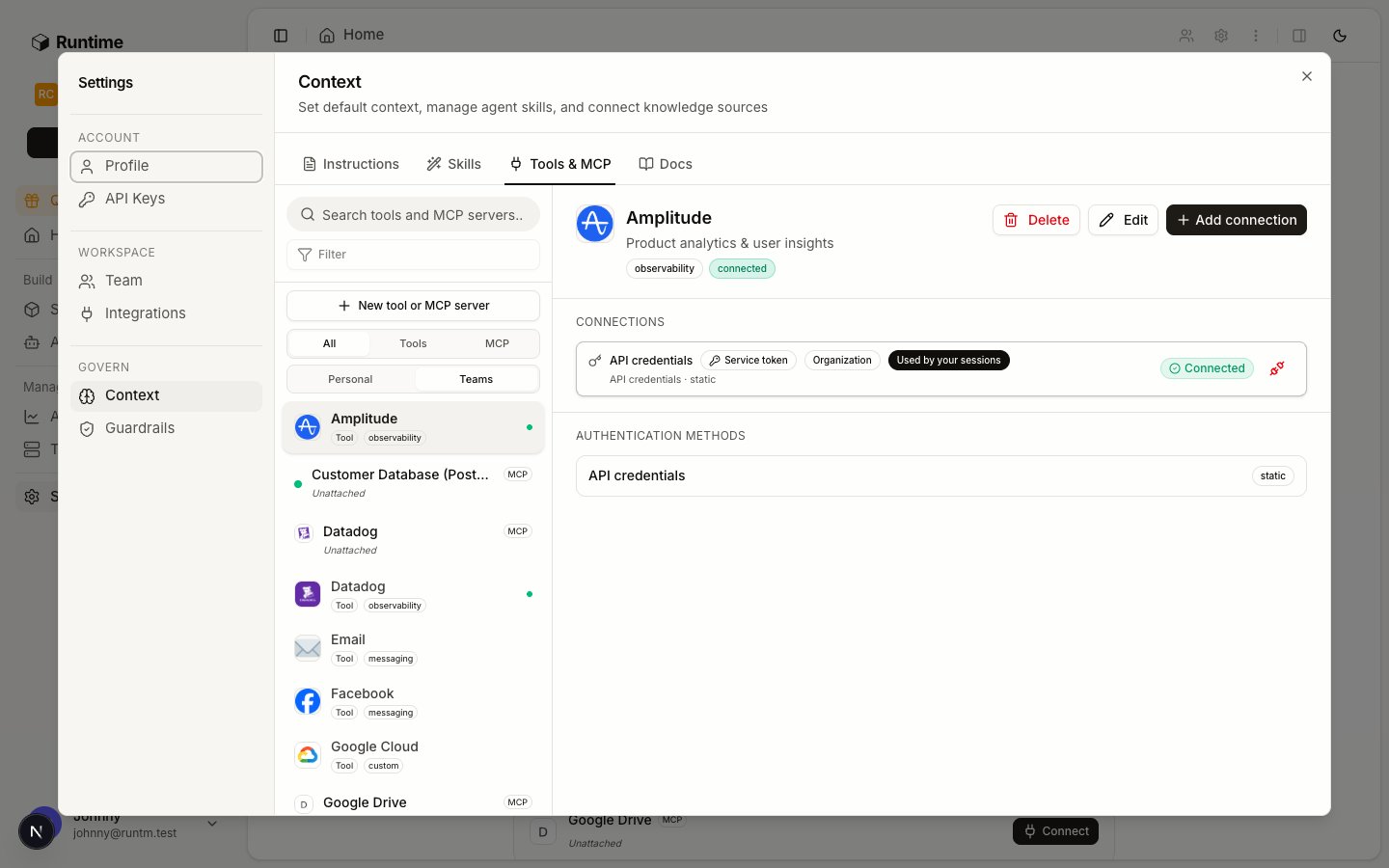
Settings > Context > Tools & MCP lists tool providers and MCP servers side by side.
requires.integrations across the skills attached to that template. Agent-scoped connections are exempt because binding a connection to one agent is already the narrowest possible intent. If a template has no skill that requires a provider, the connection is silently left out.
Definition, connection, attachment
Every integration is three separate objects, and only one of them ever holds a secret. Creating a definition attaches it nowhere, and attaching it grants no credentials.Credentials go to Runtime, never to an agent
A connection is the only object that holds a secret, so it is the one step an agent must not do for a person. A coding agent (or a Runtime agent) setting up an integration builds the definition and the attachment, then hands the person a link to create the connection themselves. The secret goes from the person’s browser straight to Runtime, where it is stored encrypted. It never appears in a chat, a prompt, a transcript, a shell history or a repo.- Bad: “Paste your Stripe key here and I’ll run
runtm-api tools createfor you.” - Good: “The Stripe provider is created and required by the
refund-investigationskill. Open this link to add the key:https://app.runtm.com/connect?provider=stripe&scope=agent&agent=<agent_id>.”
/connect link opens Settings > Context > Tools & MCP with the provider selected and its connect dialog open and filled in. If the provider is a catalog provider the org has not added yet, the link adds it first. If the person is signed out, they go back to the link after signing in.
agent=<agent_id> whenever the connection is for a roster agent, which should be almost always. Use scope=personal or scope=org only when the job requires it. The link opens in the person’s active organization, so hand it to someone who is working in the right org. It only fills in the form. The person still picks the credential, confirms any sharing warning, and clicks connect. MCP server connections have no link yet: send the person to the server under Tools & MCP and ask them to click Add connection.
runtm-api tools create --credentials exists for scripts a person runs themselves, such as CI or a bootstrap script reading from a secret manager. It is not for an agent relaying a secret it was handed.
Who the agent acts as: the credential hierarchy
Every connection, whether it belongs to a tool provider or to an MCP server, lives at exactly one of three scopes. Together they form a tree with the organization at the root.How a run picks a credential
When a session starts, Runtime resolves one connection per provider, walking the tree from the most specific scope outward:- Agent. If the run is attributed to a roster agent and that agent has its own connection for the provider, it wins. Agent connections are never used by runs that are not that agent’s.
- Personal, private sessions only. Otherwise, if the session is private (a DM with the agent, or a dashboard session) and its person has a personal connection for the provider, that is used. Team-visible runs skip this step.
- Org-wide. Otherwise the org-wide connection is used.
- Unmet. If none exists, the provider shows up as an unmet requirement in the session manifest and the run starts without it.
- Which agent the run belongs to. A Slack mention, a DM, an email, a Linear assignment or a cron tick all run as the agent behind that trigger. A session someone opens from the dashboard runs as no agent, so agent connections never apply to it.
- Whether the session is team-visible or private. A run the agent does in a shared place (a Slack channel or group DM, an email, a Linear or GitHub trigger, a schedule) is team-visible and acts purely as the agent: agent connection, then org-wide, never anyone’s personal credential. This is the same rule GitHub follows: tagged in a channel, an agent opens pull requests as its own GitHub App bot, and a reviewer agent reviews as its own account. A DM with the agent is private to the person in it, so their personal connections can fill in where the agent has none, and on GitHub their commits are authored as them with the agent as co-author. Slack matches the DM sender to a Runtime account by email; a sender with no account falls back to the trigger’s service user, which has no personal connections.
The example, run through
Northstar has two agents. Support Agent’s runbook requireszendesk and stripe; Risk Agent’s requires stripe and snowflake.
#support Ana’s personal Zendesk token is never considered, because the run is team-visible, but in his DM Ben’s personal Snowflake role fills the gap the agent leaves. If the agent must act as itself even in DMs, give it an agent connection for every provider it touches. Read the last row the same way: the org-wide credential is the floor everyone falls back to, so it should be the least privileged one in the tree.
Where each scope is set
- Org-wide and personal: Settings > Context > Tools & MCP, connect the provider and pick Teams or Personal. Personal connections are visible only to their owner.
-
Agent: in the same connect dialog choose the agent scope and pick the roster agent. Agent connections show the agent’s avatar on the connection row. A
/connectlink withagent=<agent_id>opens the dialog already on the agent scope with that agent selected. - MCP servers follow the same three scopes on their connection rows, with the same agent, then personal, then org order.
requires.integrations. Org-wide and personal connections still need a skill to ask for them.
Do it
Connect a tool provider
Open the catalog
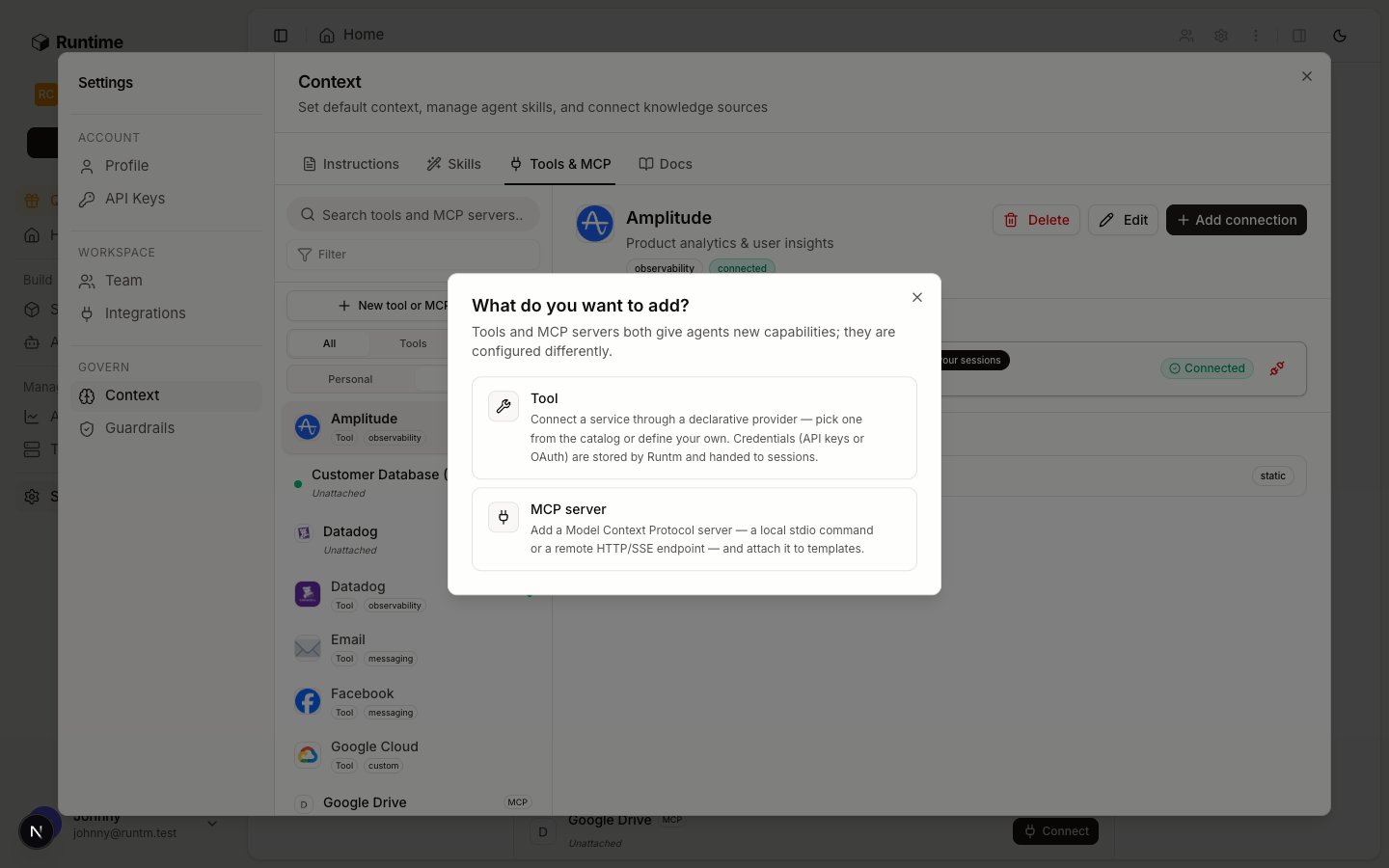
Tools and MCP servers are configured differently, so the chooser separates them.
Pick a provider from the catalog
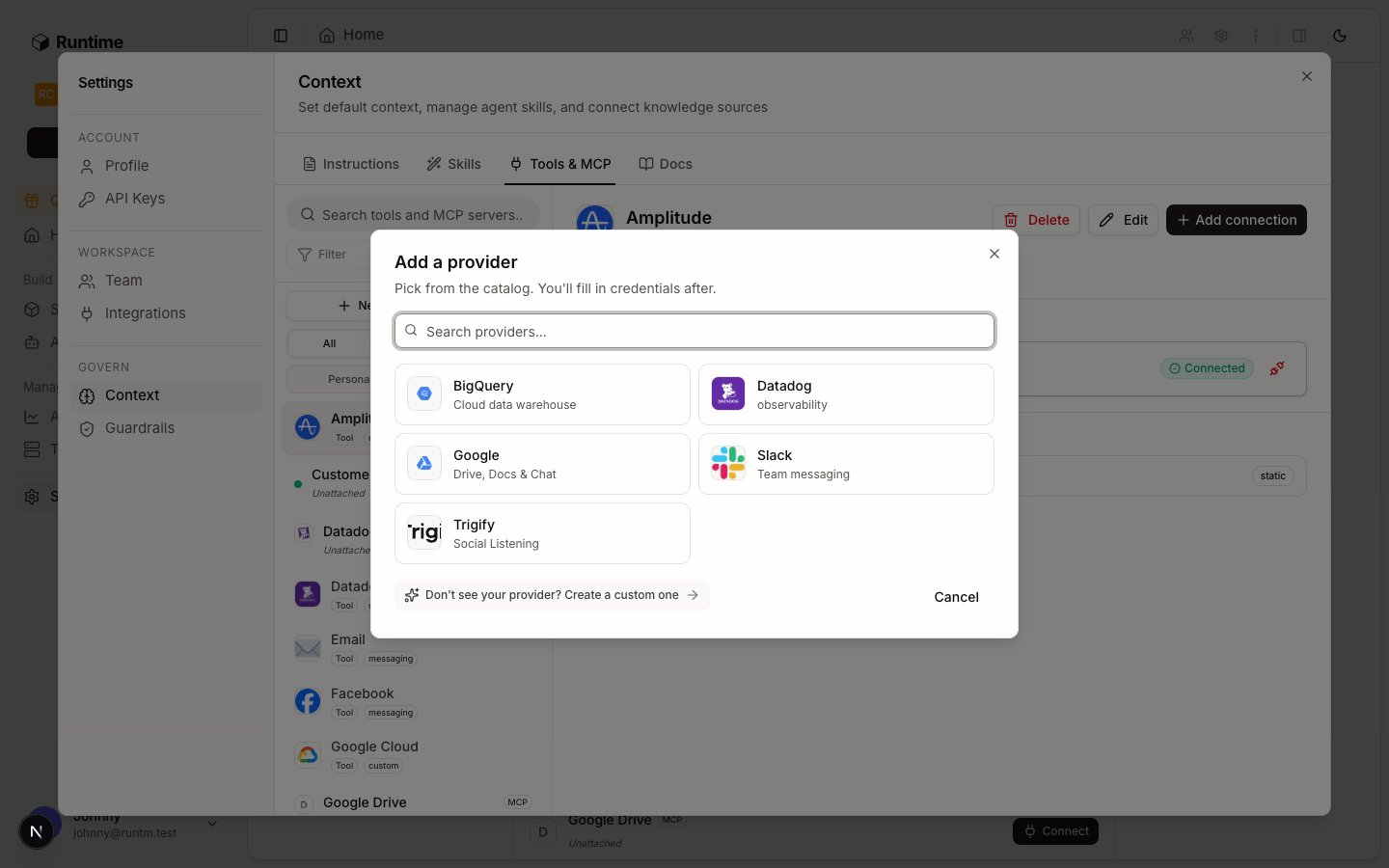
The catalog. You fill in credentials after picking.
Enter credentials
Make a skill require it
requires.integrations. Without this the connection is never materialized for the template, unless the connection is agent-scoped.Create a custom provider
Anything outside the catalog becomes a custom provider. Stripe, Postgres, Snowflake, Intercom, HubSpot, Jira, Sentry, Grafana, MySQL, MongoDB and Airtable have ready-made static schemas that the onboarding flow creates for you when you pick them during Set Up Your First Agent. For other vendors, or when you skipped onboarding, define the provider yourself.Describe the provider
--logo on the CLI; the dashboard card is blank without one).Declare the auth method and fields
static takes user-facing fields (string, secret, multiline, file_contents) and a materialization that maps them to environment variables, files or setup commands. Kind oauth takes authorize and token URLs. Kind browser takes a login URL for a browser-auth flow.A minimal static Stripe provider:Optionally install a CLI
latest, npm:pkg, github:owner/repo, cargo:crate or ubi:owner/repo. Prefer a CLI whenever it covers the job (see How should the agent reach the vendor?). github: works for vendors that only publish release binaries.Connect it
Add an MCP server
Define the server
http or sse. The definition is written verbatim into the harness’s MCP configuration at session start.Add a connection for its credentials
api_token, headers and env. For servers that publish OAuth metadata, use the OAuth flow and the platform discovers the endpoints. Scope the connection to the org, yourself, or one agent. Credentials on a connection are injected at session start and never baked into the template snapshot. Connections are managed in the dashboard and through the /api/agent-directives/{id}/connections endpoints; the CLI does not create them today.Attach it to the template
Add template secrets
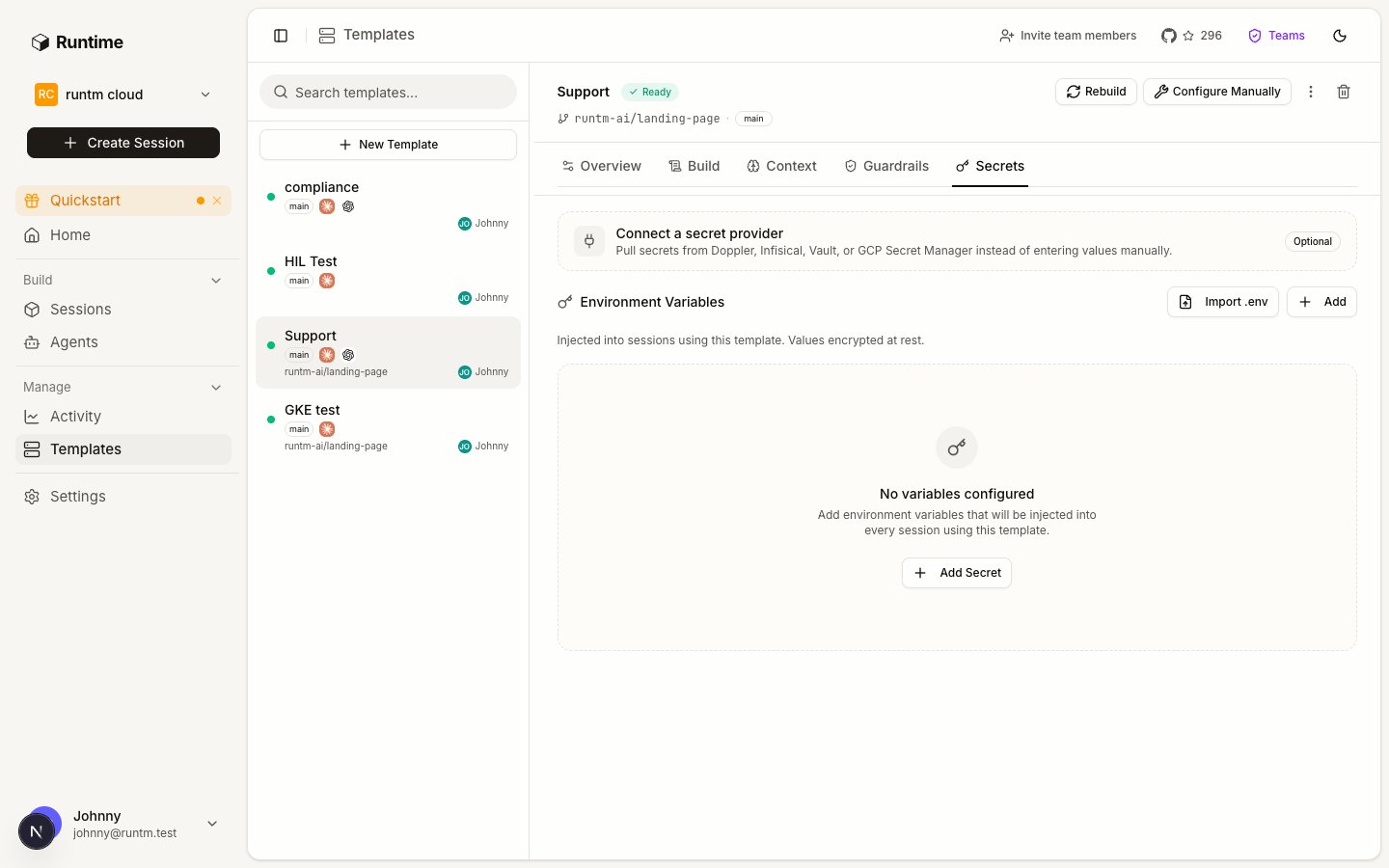
The template Secrets tab. Values are encrypted at rest and injected into every session.
Open the template's Secrets tab
Add variables the environment needs
.env. Prefer provider connections for anything that identifies a vendor account, and keep template secrets for build-time and environment configuration such as private registry tokens or a base URL.Attach repositories
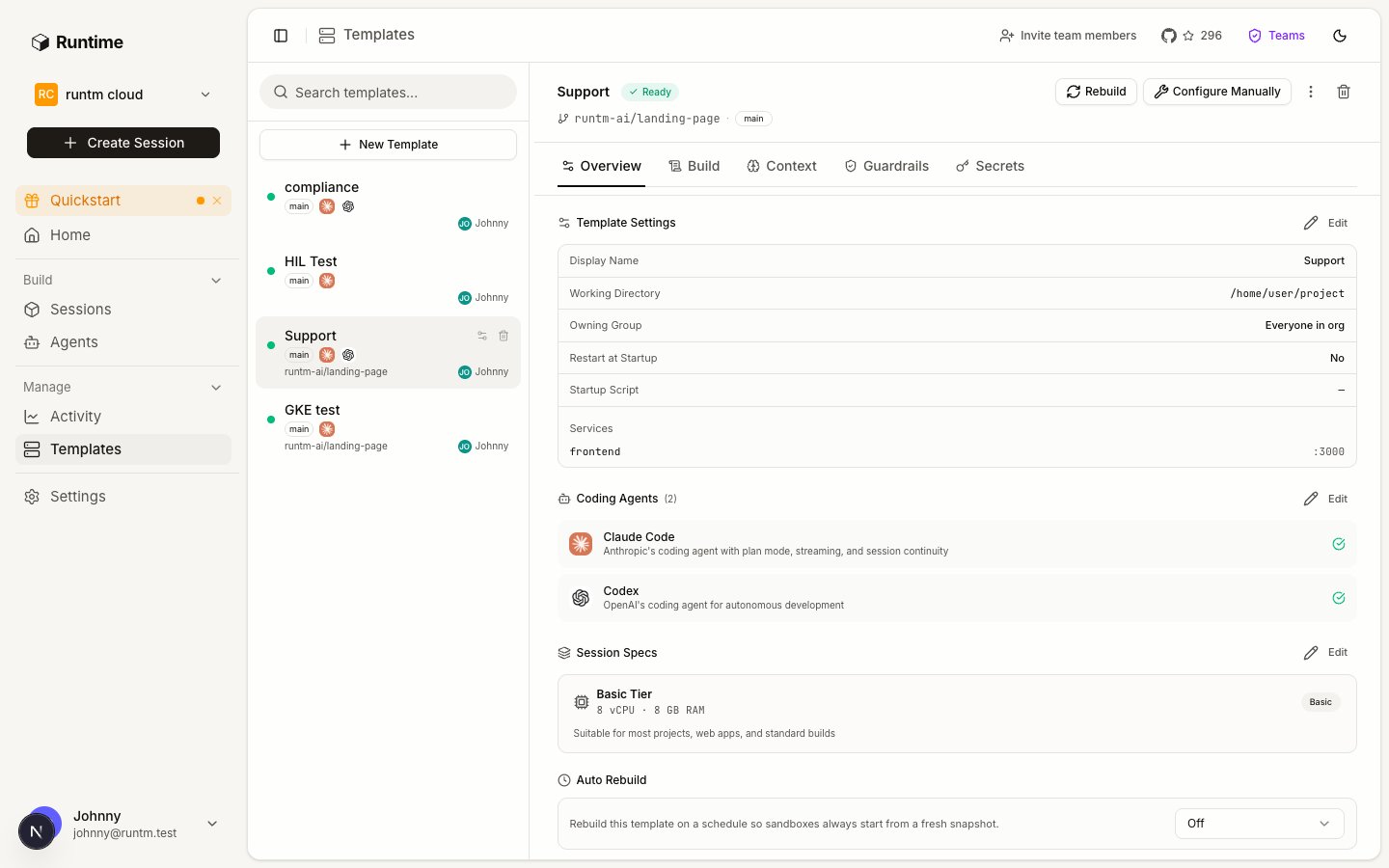
A template's Overview: repository and branch, working directory, owning group, services, coding agents and sandbox tier.
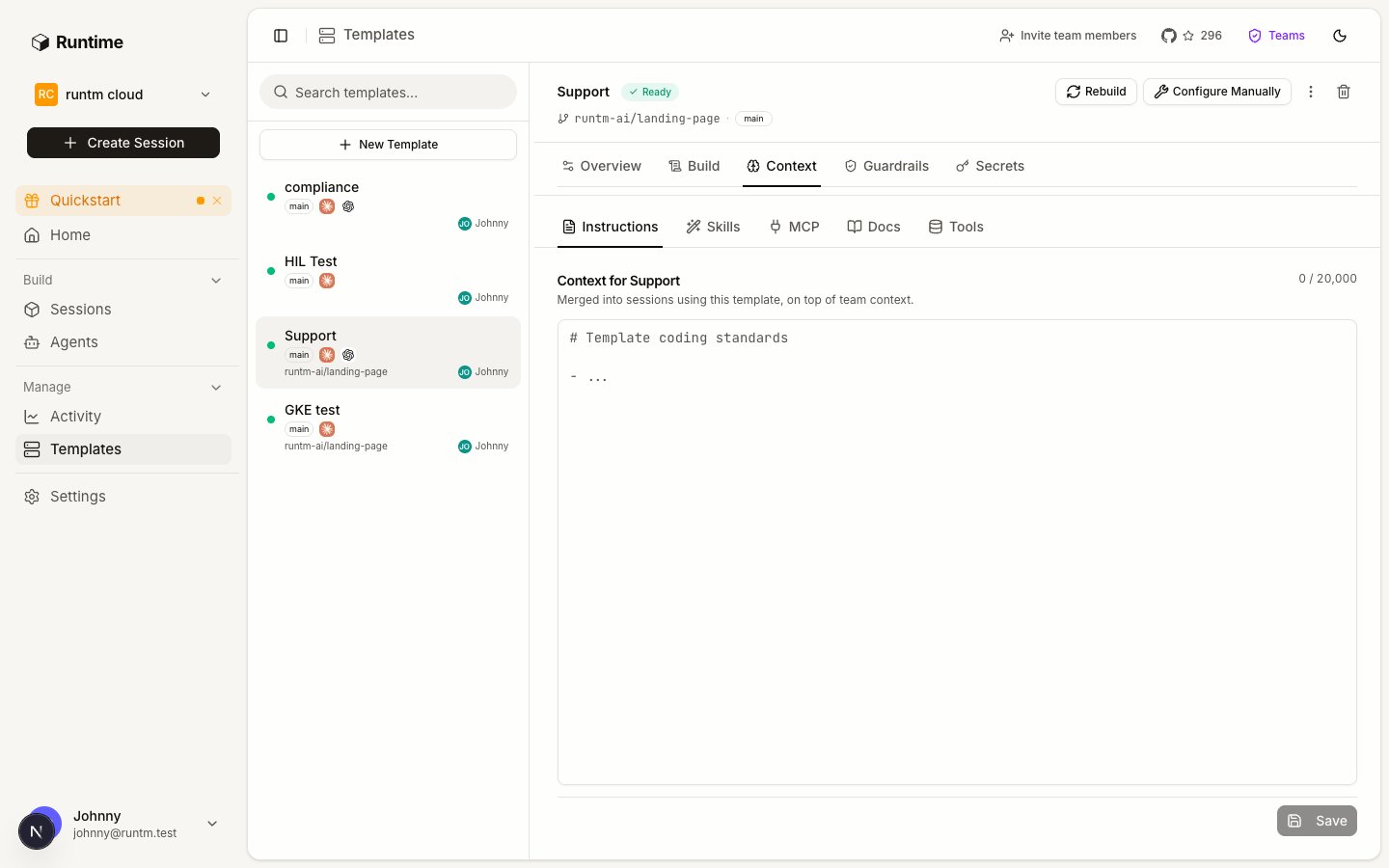
The template Context tab. Skills, MCP, Docs and Knowledge are inherited from the org and marked Enforced by org.
Build
Every attachment above lands in the snapshot only at build time. After attaching, build once, and rebuild wheneverattachments_changed_since_build is true.
Verify
- The tool is connected. Under Tools & MCP the provider shows as connected with a healthy status rather than an error.
- The template knows about it. The template detail lists the attached skills and MCP servers, and the skill that requires the provider is among them.
- The build is current. The template build status is
readyand it is not flagged as changed since the last build. - A session sees it. Launch a session from the template and run
env | grep <VAR>in the terminal, orruntm-api session exec <session_id> --json -- env. For an MCP server, ask the harness to list its tools.
Gotchas
- Attached after the last build. Attaching a skill or MCP server does not change the running snapshot.
attachments_changed_since_build: trueon the template means sessions are still booting the old set. Rebuild. - Connected but not required. An org or personal connection reaches a template only when an attached skill lists the provider in
requires.integrations. The unmet requirement shows up in the session manifest as a warning and never blocks boot, so the agent starts and then fails when it calls the vendor. - Personal key on an org resource.
runtm-api tools,mcpandtemplatecommands need an org-scoped API key.--orgcannot substitute for one. A personal key returns 403 or lists an empty set. - MCP server without a connection. The server definition is attached and appears in the harness configuration, but every call fails with an auth error because no connection was added. Add one and check it with the connection’s test action.
- Write-capable credentials. Nothing in the platform downgrades a credential. If you connect a full-access Stripe key, the agent has full access. Use the vendor’s restricted keys and database roles, then add allowlist rules for defense in depth (see Guardrails and approvals).
- OAuth providers need the dashboard.
runtm-api tools createhandles static credentials. OAuth connections are completed in the dashboard because they need a browser. Send the person a/connect?provider=<slug>&method=<oauth_method_id>link (see Credentials go to Runtime, never to an agent). - A secret pasted to an agent is already leaked. It is now in the transcript, the session history and possibly the model provider’s logs. Rotate it, then have the person connect the new one through a
/connectlink. template create --skip-agentimplies--build. The clone-only fast path builds immediately, so anything attached afterwards needs a rebuild. Create without--buildwhen you plan to attach first, then build once.- Attach merges;
--replaceoverwrites.skills attachandmcp attachadd to the existing set.skills importcan attach in the same call (--attach-template,--attach-repo,--attach-all);skills createcannot, so create-then-attach is two steps. - Templates are not only for coding agents. A support agent’s template may clone no repo at all; it exists to carry skills, MCP servers, credentials and guardrails.