

What you will have
A roster agent called Risk Agent that runs on a cron schedule, reads new Radar reviews and velocity alerts since its last run, and posts one review packet per alert to#risk-review. Each packet lists every related payment attempt in the window with Stripe ids, names the shared attribute that links the activity, cites prior cases, and ends with a recommendation of clear, monitor or block. The agent never blocks a customer, never refunds, never edits a Radar rule. A block recommendation waits for an admin to approve it before it is written into the packet. Every run is graded against three categories, and the scorecard shows the hit rate per category.
This guide follows the six steps of Build an agent in order. Guardrails come last, after the agent has proven on five historical alerts that it can assemble a correct packet with read-only credentials.
The agent spec
1. Define the job
Read Define the job first. The job here has a clear input (one alert), a clear output (one packet), and a hard boundary (no enforcement).Create the roster agent
Risk Agent. On Instructions, use this description:Sweeps new Stripe Radar reviews and velocity alerts, assembles a review packet with related attempts, linked accounts and prior cases, and recommends clear, monitor or block. Never enforces.And these system instructions:
Point it at a template
2. Measure success
Read Measure success. The grader routes each run to one category and returns pass or fail with a reason. Because the historical alerts already have analyst decisions, the success criteria can name the decision.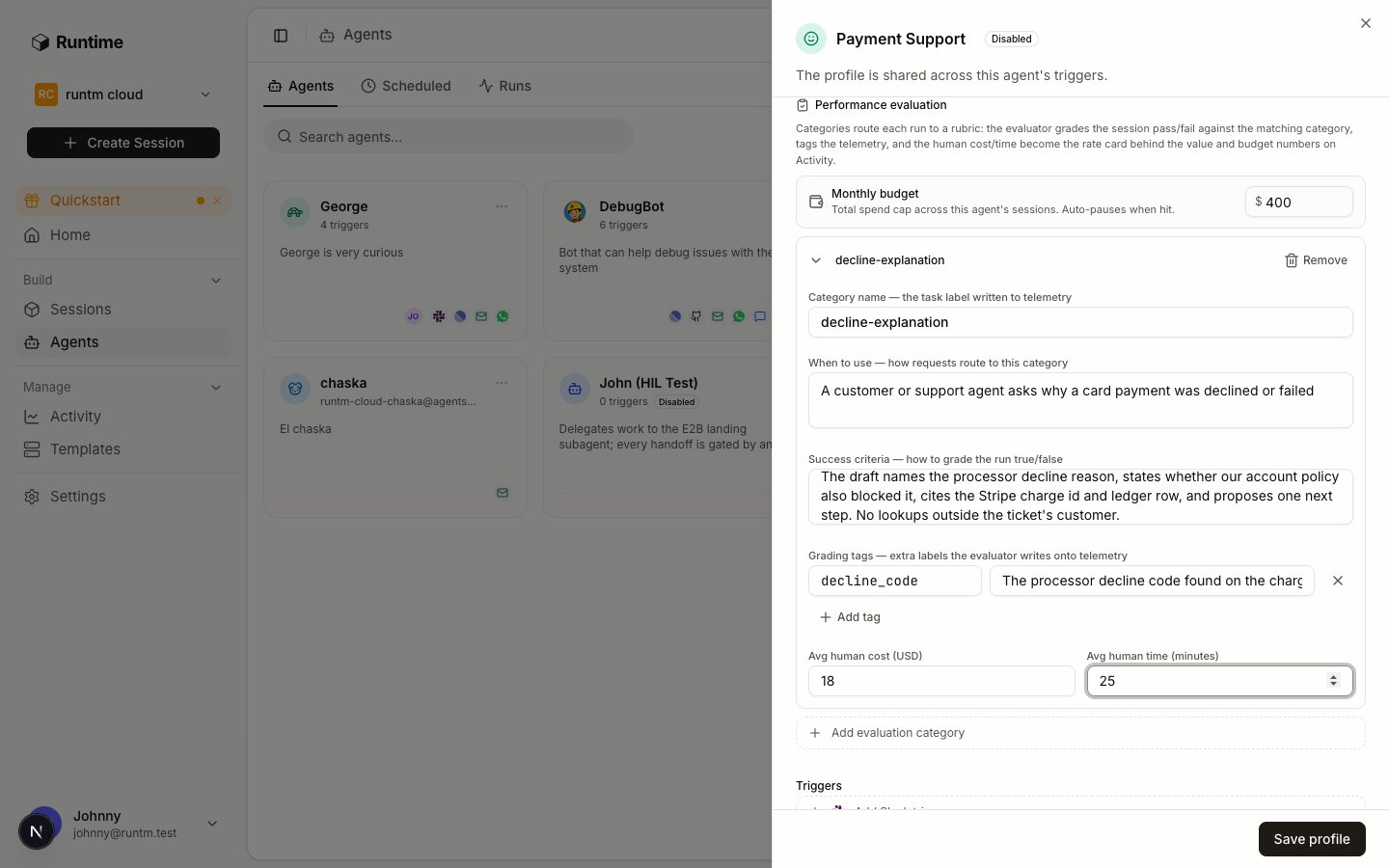
Performance evaluation on the agent's Profile tab. One category per alert type, each with success criteria the grader reads verbatim.
Add three evaluation categories
recommendation, with the instruction “The recommendation the packet ends with: clear, monitor or block”. Set Avg human cost (USD) to 45 and Avg human time (minutes) to 40.Set the monthly budget
600. This is a flag on the scorecard and an audit event when spend passes it. It does not stop runs; the hard cap lives in org limits, covered in step 6. Click Save profile.3. Give it tools
Read Give it tools, especially the credential hierarchy. Three systems, all read-only.Create the Risk Review template
Risk Review, keep Basic and click Create Template. Nothing is cloned; the template exists to carry connections and the skill.Stripe, as an agent-scoped connection
STRIPE_SECRET_KEY). If your org has not created it yet, define it once under Settings > Context > Tools & MCP, New tool or MCP server, Tool, then define a custom provider named stripe with a single secret field materialized as STRIPE_SECRET_KEY.In the Stripe dashboard create a restricted key with read permission on Charges, Payment Intents, Customers, Reviews and Radar early fraud warnings, and nothing else. Back in Runtime, connect the provider and choose the agent scope, picking Risk Agent. An agent-scoped connection is used only by runs attributed to Risk Agent and beats any personal or org-wide Stripe key. It also skips the skill filter, so the support team’s org-wide Stripe key stays theirs and this key stays the risk team’s.The key goes from the person straight to Runtime, never through an agent. An agent building this hands the person a /connect link with agent=<risk_agent_id>, which opens the connect dialog already set to the agent scope.BigQuery, org-wide, one dataset
BigQuery Data Viewer on the fraud dataset only plus BigQuery Job User on the project. Scope: Team. The provider installs gcloud and bq into the snapshot and activates the service account at session start.BigQuery is used here because it is a built-in and the fraud warehouse in this example lives in it. If your warehouse is Snowflake, define it as a custom provider with account, user and a read-only role, exactly as Stripe above.Postgres, org-wide, read-only role
SELECT from prior_cases and the account views. Scope: Team.4. Define how it works
Read Define how it works. The runbook is a skill, the trigger is a schedule, and the prohibitions stay in text until step 6.Write the fraud-review-packet skill
fraud-review-packet with this SKILL.md:references/packet-template.md:stripe, bigquery, postgres. Then attach the skill to the Risk Review template.Build the template once
ready.Create the schedule, disabled
Risk sweep. For the prompt, write:Run the fraud-review-packet skill for every Radar review, early fraud warning and fraud.alerts row created since the last run. Post one packet per alert. If there are none, say so.Set run-as to Agent and pick Risk Agent, so the run carries the agent’s identity: the agent-scoped Stripe key applies and the run is graded against the agent’s categories. Set the schedule to Interval, Every 30 minutes. Under Post, pick the Slack integration and the
#risk-review channel. Choose Team visibility. Create it, then flip the toggle off so it is disabled until step 5 proves it.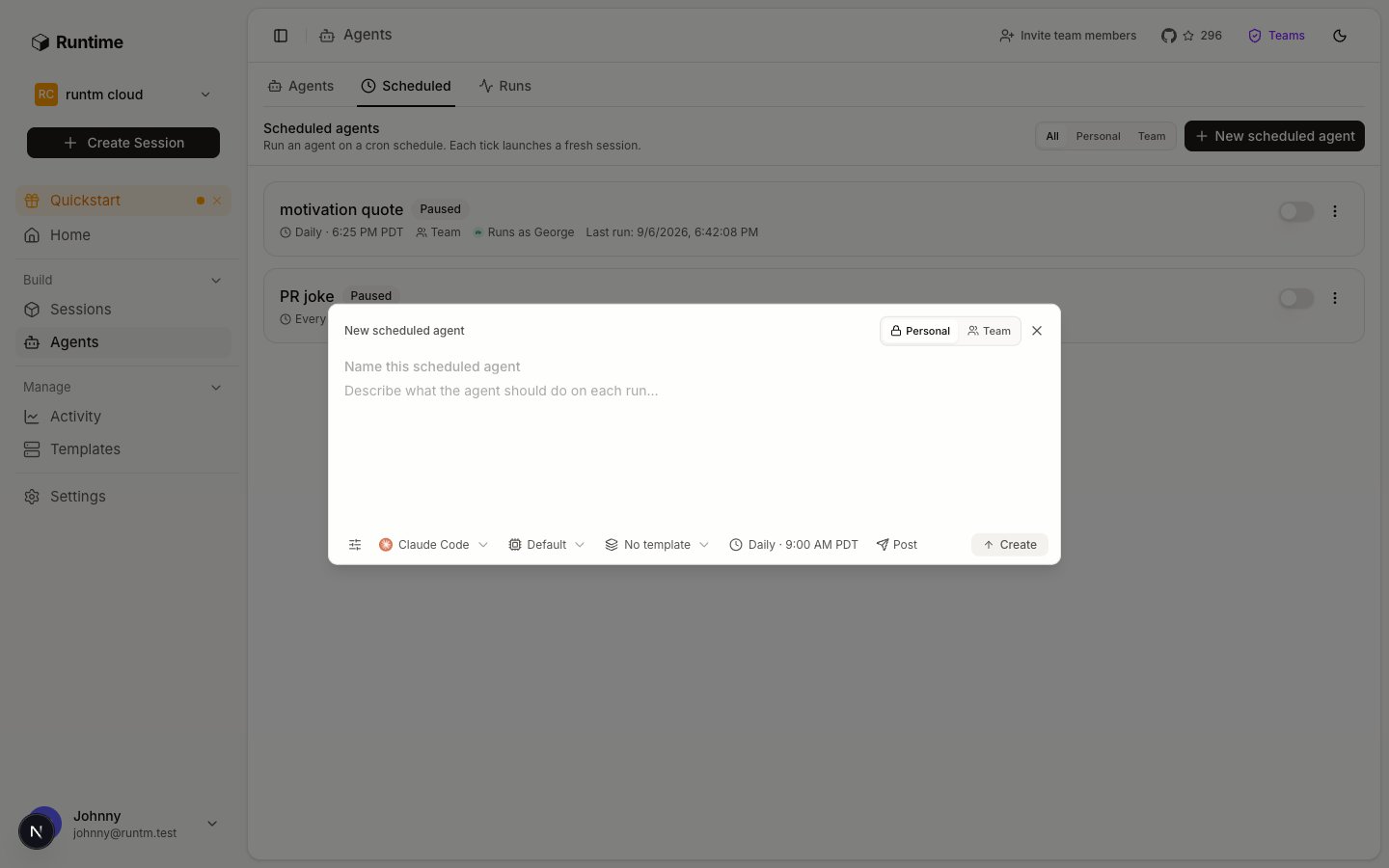
The scheduled agent dialog: prompt first, then coding agent, template, schedule and post target along the bottom.
Optional: a Slack mention for ad hoc alerts
@Risk Agent <review id> in #risk-review runs the same skill on one alert. The mention runs as Risk Agent too, so the same credentials and grading apply.5. Prove it works and iterate
Read Prove it works and iterate. No guardrail exists yet. The agent is safe because every credential is read-only, the sandbox is destroyed after each run, and the schedule is disabled so nothing runs unless you press Run now.Seed five historical alerts
Run each case with Run now
Run the fraud-review-packet skill for Radar review prv_...), then click Run now on the schedule’s row. Run now executes the identical code path a cron tick takes, so a failure here is the failure you would otherwise get at 03:00 UTC.For cases A and D the session will stop in awaiting_approval. Open Sessions, find the run, and click Approve or Reject on its card. Try both across the two cases to see the packet change.Read the grade and the packet
Read the scorecard
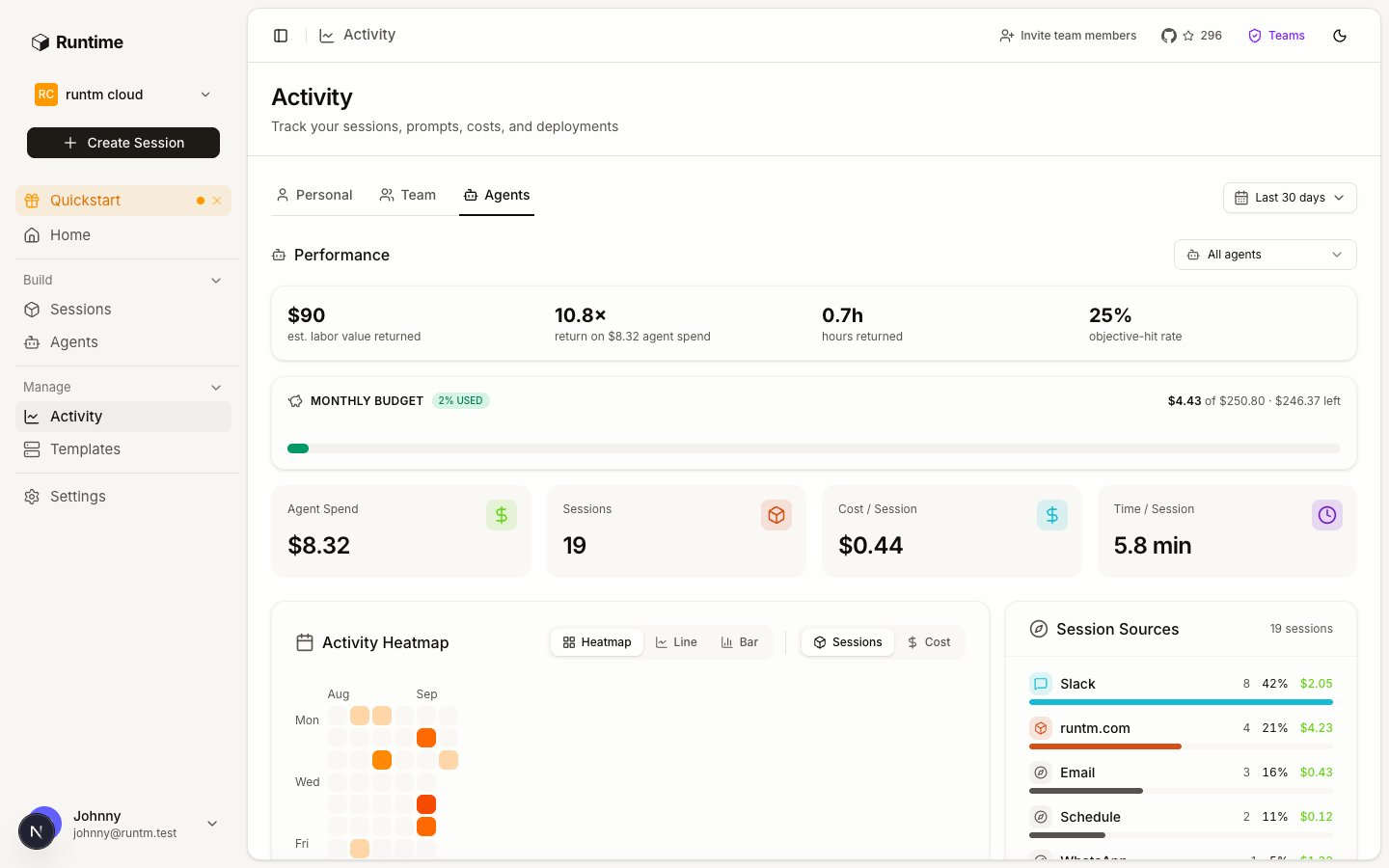
Activity > Agents: graded runs, objective hit rate, value returned and the monthly budget per agent.
Tighten one thing, then re-run
6. Add guardrails and approvals
Read Add guardrails and approvals. This agent runs unattended, so it gets the full set: allowlist rules, network rules, and the approval step you already exercised.Deny every write, from what you saw
Pin the network
hooks.slack.com is not needed.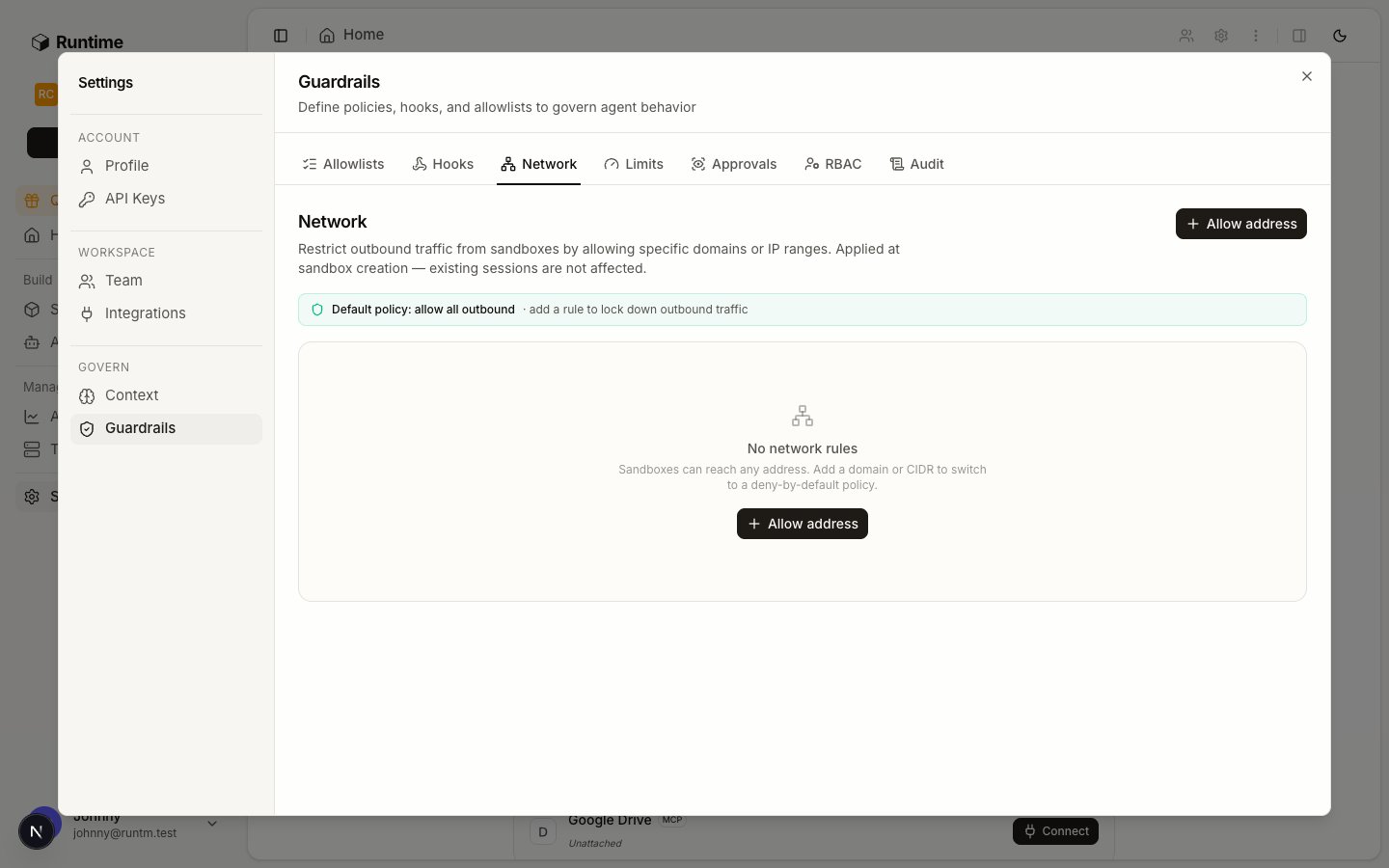
Network rules turn egress into deny-all plus the listed hosts.
Rebuild, then re-run one case per category
ask or fails, the last rule you added is the cause: remove it, re-run, and write it narrower.Set the org hard cap
$600 budget, which only flags.Enable the schedule
Risk sweep row. Check next_run_at is in the future. After the first tick, confirm a packet (or “No new alerts”) landed in #risk-review and a graded run appears under Runs.What stays human
- Every enforcement action. Blocks, refunds, limit changes and Radar rule edits happen in Stripe by an analyst, using the packet as evidence. The agent’s credential cannot do them and the allowlist denies the commands anyway.
- Every
blockrecommendation. The runbook requests an approval with--required-role adminand waits. The request appears on the session card under Sessions and inruntm-api session approvals list. It is not delivered to Slack; someone with the admin role resolves it on the board or with the CLI. Rejected means the packet saysmonitorand quotes the note. - The rubric. When the grader and the analyst disagree, the analyst is right and the success criteria change.
Gotchas
- Run-as Harness instead of Agent. A schedule created in Harness mode runs with no agent identity: the agent-scoped Stripe key never applies, the run is not graded, and the scorecard stays at zero. Check the schedule row says “Runs as Risk Agent”.
- Skill attached, template not rebuilt.
template getshowsattachments_changed_since_build: trueuntil you build. The first sweep then runs without the skill and posts an improvised packet. - BigQuery works in the terminal but not in the run. The org-wide connection reaches the session only because the skill requires
bigquery. Remove it fromrequires.integrationsand the connection is silently filtered out. - A network rule set without
app.runtm.com. The sandbox loses the runtm CLI, soruntm-approvalfails and everyblockcase errors instead of waiting. - Enabled before proven. An enabled schedule with
last_run_atnull andnext_run_atin the past never ran. Disable, Run now, read the session, enable. - The cron step form. Runtime accepts
*/30in the dialog, but the hidden CLI comments on this page use0,30 * * * *because the slash form ends an MDX comment early. Both mean every 30 minutes. - Budget exceeded keeps running.
$600is a scorecard flag. The org limit in step 6 is the cap.